Store categories
Cards for your store’s categories: pictures from Salla at 1200 by 900 pixels, badges and short lines from “Category extras” in Category pages.
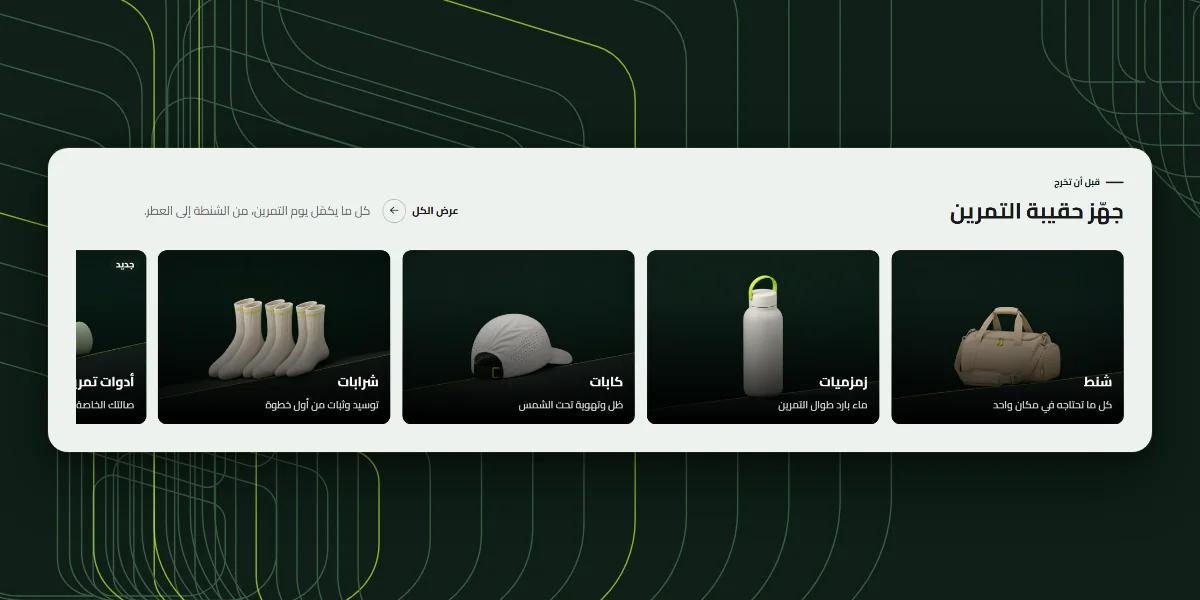
Where it is in the Salla dashboard
- 1(المتجر وقنوات البيع)
- 2(تصميم المتجر)
- 3(إدارة الثيمات)
- 4(تخصيص)
- 5(صفحات المتجر)
- 6(عناصر الصفحة)
- 7(تصنيفات المتجر)
Element 3 of 50 in (Add a new element)
When to use it
Best for showing your store's categories in one strip of cards on the home page.
Your categories, automatically
Choose «Automatic» in «Category source», then set «How many» from 4 categories up to «All categories».
Categories you pick
Choose «Hand-picked», then pick in «Categories» only the ones you want to feature, such as seasonal ones.
A strip for some customers only
In «Who sees it», choose «Signed-in customers» or «Signed-out visitors».
For the best result
- Add category pictures and badges in «Category extras» under «Catalogue pages», and the element uses them.
- Note: switching back to «Automatic» and saving clears the categories you picked by hand.
Watch the walkthrough
Walkthrough video coming soon
A short video that walks through the element inside the Salla dashboard. We will add it once Ultra’s options are final.
Settings
In the same order, with the same names, as in the Salla dashboard.
Options such as «Line above the title», «View all» and «Product source» are explained once on the Shared options page.
Line above the title السطر فوق العنوان
Type: TextDefault: Empty
Leave blank to hide it.
Eyebrow icon أيقونة السطر فوق العنوان
Type: Icon
Stands in place of the short line before the words. Leave blank to keep the line.
Title العنوان
Type: TextDefault: Empty
Description نص توضيحي
Type: Long textDefault: Empty
Shown on two lines at most.
Show the “View all” link إظهار رابط «عرض الكل»
Type: SwitchDefault: On
“View all” link رابط «عرض الكل»
Type: Picked from your storeDefault: Empty
Leave blank to open the all categories page.
Shown when “Show the “View all” link” is on.
Category source مصدر التصنيفات
Type: Choice listDefault: Automatic
Automatic shows the main categories in Salla’s order; Hand-picked, any category you pick. Switching back to Automatic and saving clears the picks.
Options: Automatic, Hand-picked
How many العدد
Type: Choice listDefault: 8 categories
Options: 4 categories, 8 categories, 12 categories, 16 categories, All categories
Shown when “Category source” is set to “Automatic”.
Categories التصنيفات
Type: Picked from your storeDefault: Empty
Shown when “Category source” is set to “Hand-picked”.
(Advanced options)
At the bottom of the element’s settings, under (Advanced options).
Who sees it من يرى العنصر
Type: Choice listDefault: Everyone
Seen by everyone, signed-out visitors only, or signed-in customers only.
Options: Everyone, Signed-out visitors, Signed-in customers
Link name اسم الانتقال
Type: TextDefault: Empty
The name menus and buttons use to jump here.
CSS class فئة CSS
Type: TextDefault: Empty
Names to target this element from CSS (promo → ultra-u-promo). Separate them with a space.