Product comparison
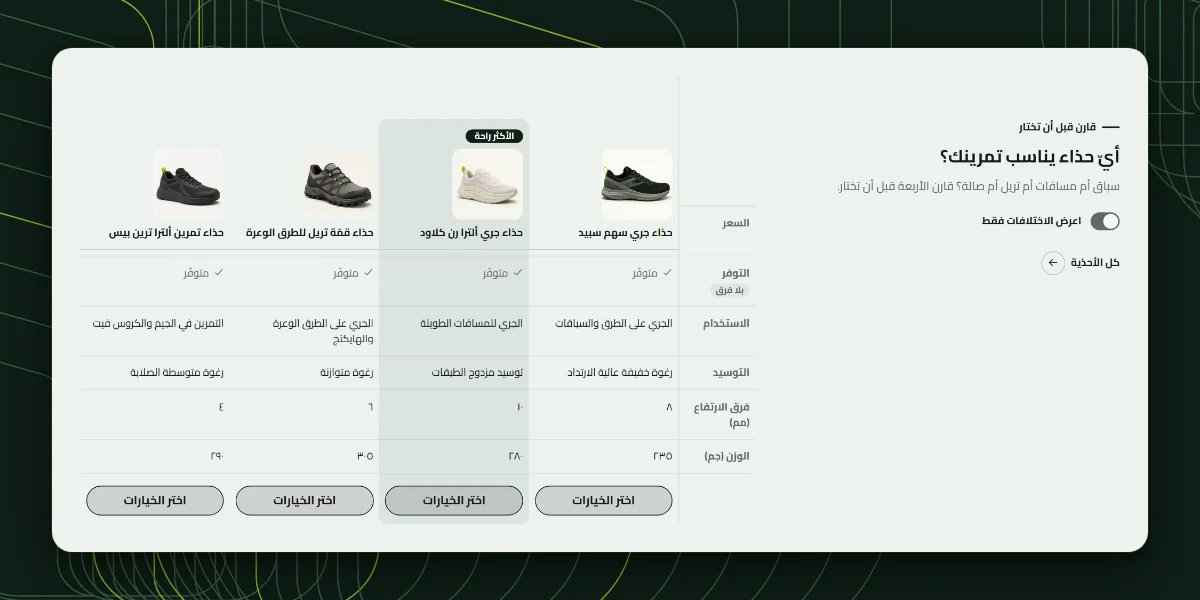
A table comparing two to four products: price, rating and availability rows read from your store as the page opens, plus rows you write.
Where it is in the Salla dashboard
- 1(المتجر وقنوات البيع)
- 2(تصميم المتجر)
- 3(إدارة الثيمات)
- 4(تخصيص)
- 5(صفحات المتجر)
- 6(عناصر الصفحة)
- 7(مقارنة المنتجات)
Element 33 of 50 in (Add a new element)
When to use it
Help customers choose between two to four of your products.
A quick automatic comparison
Pick the «Products» and tick what you want in «Rows shown»; price, rating and stock are read from your store as the page opens.
A comparison by features
Add «Rows» with values you write. Pick «Yes or no» in «Type» to show a tick or a cross.
Point to one product
Set «Highlighted product» and write the «Highlight text»; its column is shaded with the text above it.
For the best result
- Order the «Products» before writing values; reordering moves the highlight and values to another product.
- Keep the «Show differences only» switch ticked in «Table extras» so customers can hide identical rows.
- Untick in «Rows shown» any row that does not tell your products apart.
Watch the walkthrough
Walkthrough video coming soon
A short video that walks through the element inside the Salla dashboard. We will add it once Ultra’s options are final.
Settings
In the same order, with the same names, as in the Salla dashboard.
Options such as «Line above the title», «View all» and «Product source» are explained once on the Shared options page.
Line above the title السطر فوق العنوان
Type: TextDefault: Compare before you choose
Leave blank to hide it.
Title العنوان
Type: TextDefault: Which of our products suits you most?
Description نص توضيحي
Type: Long textDefault: Empty
Shown on two lines at most.
Link target ربط الرابط
Type: Choice listDefault: Page or product
Options: No link, Page or product, On-page element, Pop-up window
Link destination وجهة الرابط
Type: Picked from your storeDefault: Empty
Shown under the text. Hidden if this or the link text is blank.
Shown when “Link target” is set to “Page or product”.
Target element link name اسم انتقال العنصر المقصود
Type: TextDefault: Empty
Copy it from the target element’s “Link name”, under “Advanced options”.
Shown when “Link target” is set to anything but “No link”.
Shown when “Link target” is set to anything but “Page or product”.
Link text نص الرابط
Type: TextDefault: Empty
Shown when “Link target” is set to anything but “No link”.
Products المنتجات
Type: Picked from your storeDefault: Empty
Two to four, in column order. Reordering them moves the highlight and the written values to another product.
Highlighted product المنتج المميّز
Type: Choice listDefault: None
Its column is tinted, with the highlight text above it, by the order of the products above.
Options: None, First product, Second product, Third product, Fourth product
Highlight text نص التمييز
Type: TextDefault: Our pick
Shown above the highlighted product only.
Shown when “Highlighted product” is set to anything but “None”.
Automatic rows
Read from your store as the page opens; a dash marks gaps.
Rows shown الصفوف الظاهرة
Type: Multiple choiceDefault: Price, Discount, Rating, Availability, Brand, Category, Sizes and options
Shown in this order.
Options: Price, Discount, Rating, Availability, Brand, Category, Sizes and options
Table extras إضافات الجدول
Type: Multiple choiceDefault: Best-value marks, “Show differences only” switch, Add-to-cart button
Marks go under the lowest price, biggest discount and highest rating; the switch hides matching rows.
Options: Best-value marks, “Show differences only” switch, Add-to-cart button
Rows you write
Rows الصفوف
Type: List of itemsDefault: Empty
Each row has a name and a value per product; a blank value shows a dash.
Items: 0–12
Name الاسم
Type: TextDefault: Empty
Type النوع
Type: Choice listDefault: Text
With “Yes or no”, write “Yes” or “No” as the value to show a check mark or a cross.
Options: Text, Yes or no
Value for the first product قيمة المنتج الأول
Type: TextDefault: Empty
Values follow the order you picked the products in, so reordering them moves values to another column. Blank shows a dash.
Value for the second product قيمة المنتج الثاني
Type: TextDefault: Empty
Value for the third product قيمة المنتج الثالث
Type: TextDefault: Empty
Value for the fourth product قيمة المنتج الرابع
Type: TextDefault: Empty
(Advanced options)
At the bottom of the element’s settings, under (Advanced options).
Who sees it من يرى العنصر
Type: Choice listDefault: Everyone
Seen by everyone, signed-out visitors only, or signed-in customers only.
Options: Everyone, Signed-out visitors, Signed-in customers
Link name اسم الانتقال
Type: TextDefault: Empty
The name menus and buttons use to jump here.
CSS class فئة CSS
Type: TextDefault: Empty
Names to target this element from CSS (promo → ultra-u-promo). Separate them with a space.