Backdrop products
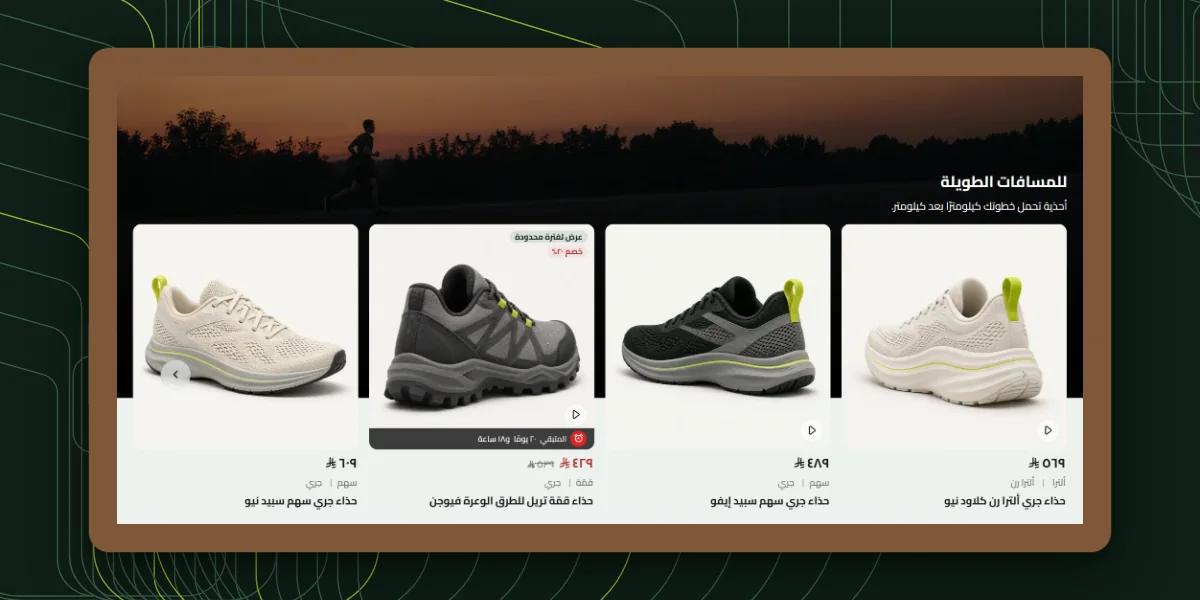
A full-width picture you upload with a heading and description on it, and a strip of products you pick rising over its lower edge.
Where it is in the Salla dashboard
- 1(المتجر وقنوات البيع)
- 2(تصميم المتجر)
- 3(إدارة الثيمات)
- 4(تخصيص)
- 5(صفحات المتجر)
- 6(عناصر الصفحة)
- 7(منتجات بخلفية)
Element 32 of 50 in (Add a new element)
When to use it
Show a group of products over a large picture with its own title, such as a campaign or season.
A seasonal campaign
Upload the campaign picture, then choose «Hand-picked products» in «Product source» and pick up to 8 of its products.
A new collection with its page
Choose «From a category» in «Product source» and pick the «Category», then point the «View all» link to that category's page so customers continue browsing there.
A picture made for phones
Upload a «Mobile background image» so the computer picture is not cropped to fill the screen.
For the best result
- Computer picture 1920 × 640; mobile picture 800 × 800.
- With «Hand-picked products», products show in the order you pick them, so start with the most important.
Watch the walkthrough
Walkthrough video coming soon
A short video that walks through the element inside the Salla dashboard. We will add it once Ultra’s options are final.
Pictures and tools
The size of each picture in this element, as the theme sets it, and a ready prompt for image tools.
(Desktop background image)
1920 × 6403:1
(Mobile background image)
800 × 8001:1
Picture prompt
Pick the picture you want, then copy the prompt into an image tool with your product photo.
Paste the text into an image tool with your product photo and choose a 3:1 ratio. Then crop the picture to 1920 × 640 px and upload it in “صورة الخلفية على الكمبيوتر” inside the “منتجات بخلفية” element.
Create a picture for the "Backdrop products" element of an online store home page (picture: Desktop background image).
What the element does: A full-width picture you upload with a heading and description on it, and a strip of products you pick rising over its lower edge.
Aspect ratio: 3:1 (the final file is cropped to exactly 1920 x 640 px).
Theme note for this picture: Recommended size: 1920 x 640px. Keep what matters in the top third; the products and the words cover the lower part.
Composition: keep the important subject in the centre; keep the outer 10% on every side free of detail, because the edges may be cropped on mobile.
Product: if I attach a product photo, use it exactly as it is: same shape, colours, label and logo. Do not redraw it or invent text on the packaging.
Style: realistic photography, soft natural light and shadow.
Colours: calm, muted and desaturated; no neon or saturated tones.
People: if any person appears, men only; otherwise no people.
Do not add any words, prices, logos or watermarks to the picture.
Example of this element in a store: https://cdn.salla.sa/form-builder/oNAxK7Sw3ZopuhoaPS6rBwzBMczRTrBD4pXZnrYl.webp
Settings
In the same order, with the same names, as in the Salla dashboard.
Options such as «Line above the title», «View all» and «Product source» are explained once on the Shared options page.
Desktop background image صورة الخلفية على الكمبيوتر
Type: ImageDefault: Empty
Recommended size: 1920 x 640px. Keep what matters in the top third; the products and the words cover the lower part.
Mobile background image صورة الخلفية على الجوال
Type: ImageDefault: Empty
Recommended size: 800 x 800px. With no mobile image, a center square is cut from the desktop image, so keep what matters there.
Title العنوان
Type: TextDefault: Empty
Description نص توضيحي
Type: Long textDefault: Empty
Shown on two lines at most.
Product source مصدر المنتجات
Type: Choice listDefault: Newest products
Shows the set number from the source you choose, or your own picks with Hand-picked products; picks clear if you switch and save.
Options: Newest products, Best sellers, Top rated, Offers, From a category, From a brand, Tagged products, Hand-picked products
How many العدد
Type: Choice listDefault: 8 products
Options: 4 products, 8 products
Shown when “Product source” is set to anything but “Hand-picked products”.
Category التصنيف
Type: Picked from your storeDefault: Empty
Shown when “Product source” is set to “From a category”.
Brand العلامة التجارية
Type: Picked from your storeDefault: Empty
Shown when “Product source” is set to “From a brand”.
Tag الوسم
Type: Picked from your storeDefault: Empty
Shown when “Product source” is set to “Tagged products”.
Products المنتجات
Type: Picked from your storeDefault: Empty
Up to 8 products, shown in the order you pick them.
Shown when “Product source” is set to “Hand-picked products”.
Show the “View all” link إظهار رابط «عرض الكل»
Type: SwitchDefault: On
“View all” link رابط «عرض الكل»
Type: Picked from your storeDefault: Empty
Leave blank to open the newest products page.
Shown when “Show the “View all” link” is on.
(Advanced options)
At the bottom of the element’s settings, under (Advanced options).
Who sees it من يرى العنصر
Type: Choice listDefault: Everyone
Seen by everyone, signed-out visitors only, or signed-in customers only.
Options: Everyone, Signed-out visitors, Signed-in customers
Link name اسم الانتقال
Type: TextDefault: Empty
The name menus and buttons use to jump here.
CSS class فئة CSS
Type: TextDefault: Empty
Names to target this element from CSS (promo → ultra-u-promo). Separate them with a space.