Pop-up products
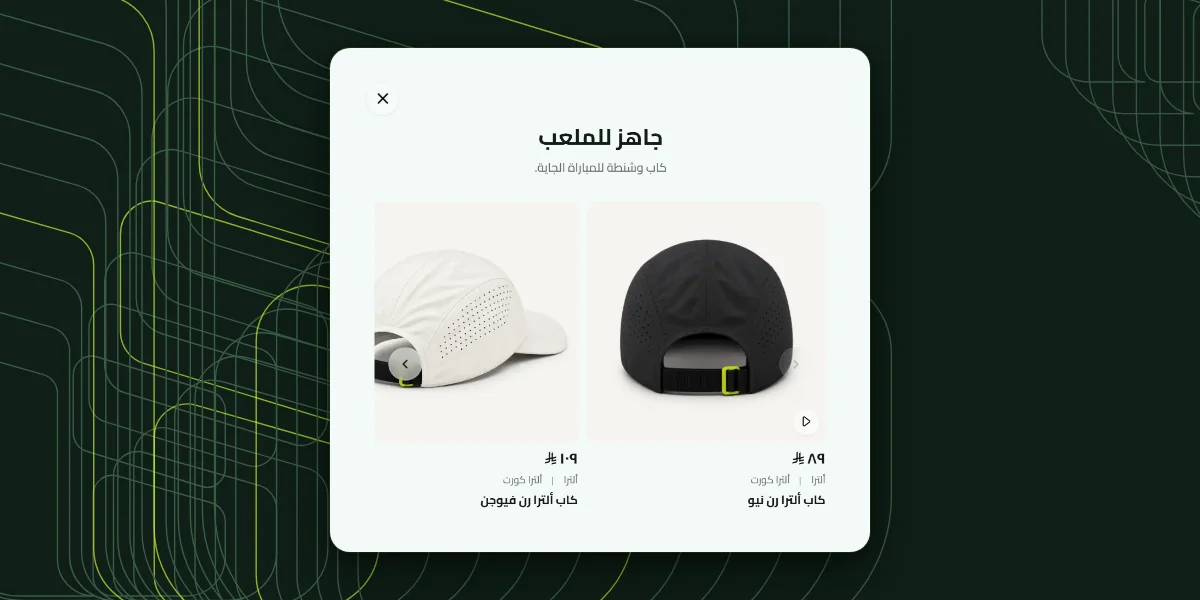
A popup showing products from your store in a slider or one under another, opened by a button or automatically, never in the page itself.
Where it is in the Salla dashboard
- 1(المتجر وقنوات البيع)
- 2(تصميم المتجر)
- 3(إدارة الثيمات)
- 4(تخصيص)
- 5(صفحات المتجر)
- 6(عناصر الصفحة)
- 7(منتجات منبثقة)
Element 36 of 50 in (Add a new element)
When to use it
Best for showing products from your store in a window over the page, opening by itself when you choose or by a button.
A window that opens by itself
In «How it opens», choose a time such as «After 5 seconds», or a scroll such as «After scrolling half». Or choose «On reaching an element» and enter its link name in «Element that opens it».
Products after adding to cart
Choose «On adding to cart» and pick the «Products» that open the window, or leave them empty so it shows for any product. For a whole category or brand, choose «Adding from a category» or «Adding from a brand».
A window opened by a button
Choose «By button or link» in «How it opens», and give the window a «Link name» in «Advanced options». Then choose «Pop-up window» in another element's link, and enter the same name in «Target element link name».
For the best result
- Pick the products in «Product source», such as «Best sellers» or «From a category». With «Hand-picked products», pick up to 12 in «Window products».
- «On exit (desktop only)» works on desktop only and does not open the window on mobile.
- With automatic opening, set «How often it shows» so the same customer does not see it again and again. The window waits while another one is open, such as the quick view or the side cart.
- Choose «One under another» in «Product layout» to show the products as wide cards stacked in the window, or keep «Slider».
Watch the walkthrough
Walkthrough video coming soon
A short video that walks through the element inside the Salla dashboard. We will add it once Ultra’s options are final.
Settings
In the same order, with the same names, as in the Salla dashboard.
Options such as «Line above the title», «View all» and «Product source» are explained once on the Shared options page.
Title العنوان
Type: TextDefault: Picked for you
Shown at the top of the window, and its name for screen readers.
Description نص توضيحي
Type: Long textDefault: Empty
Shown on two lines at most.
Products
Product source مصدر المنتجات
Type: Choice listDefault: Newest products
Shows the set number from the source you choose, or your own picks with Hand-picked products; picks clear if you switch and save.
Options: Newest products, Best sellers, Top rated, Offers, From a category, From a brand, Tagged products, Hand-picked products
How many العدد
Type: Choice listDefault: 8 products
Options: 4 products, 8 products, 12 products
Shown when “Product source” is set to anything but “Hand-picked products”.
Category التصنيف
Type: Picked from your storeDefault: Empty
Shown when “Product source” is set to “From a category”.
Brand العلامة التجارية
Type: Picked from your storeDefault: Empty
Shown when “Product source” is set to “From a brand”.
Tag الوسم
Type: Picked from your storeDefault: Empty
Shown when “Product source” is set to “Tagged products”.
Window products منتجات النافذة
Type: Picked from your storeDefault: Empty
Up to 12 products, shown in the order you pick them.
Shown when “Product source” is set to “Hand-picked products”.
Product layout ترتيب المنتجات
Type: Choice listDefault: Slider
Products scroll sideways in the slider, or show as horizontal cards one under another, scrolling inside the window.
Options: Slider, One under another
Show the “View all” link إظهار رابط «عرض الكل»
Type: SwitchDefault: On
“View all” link رابط «عرض الكل»
Type: Picked from your storeDefault: Empty
Leave blank to open the newest products page.
Shown when “Show the “View all” link” is on.
(Advanced options)
At the bottom of the element’s settings, under (Advanced options).
How it opens فتح النافذة
Type: Choice listDefault: After 5 seconds
Opening by a button or link needs a link name under Advanced options; “On exit” is desktop only.
Options: By button or link, After 3 seconds, After 5 seconds, After 8 seconds, After 12 seconds, After scrolling a quarter, After scrolling half, After scrolling three quarters, On reaching an element, On exit (desktop only), On adding to cart, Adding from a category, Adding from a brand
Element that opens it العنصر الذي يفتح النافذة
Type: TextDefault: Empty
The link name set under that element’s Advanced options.
Shown when “How it opens” is set to “On reaching an element”.
Products المنتجات
Type: Picked from your storeDefault: Empty
The window shows only when one of these is added. Leave empty to show for any product.
Shown when “How it opens” is set to “On adding to cart”.
Categories التصنيفات
Type: Picked from your storeDefault: Empty
The window shows when a product from one of these categories is added.
Shown when “How it opens” is set to “Adding from a category”.
Brands العلامات التجارية
Type: Picked from your storeDefault: Empty
The window shows when a product of one of these brands is added.
Shown when “How it opens” is set to “Adding from a brand”.
Window width عرض النافذة
Type: Choice listDefault: Medium
The window size when opened. On phones, “Full screen” can affect how the page ranks in Google Search; the smaller sizes do not.
Options: Extra small, Small, Medium, Large, Extra large, Full screen
How often it shows عدد مرات الظهور
Type: Choice listDefault: Once per visit
So the same customer does not see it again and again.
Options: Once per visit, Once a day, Only once
Shown when “How it opens” is set to anything but “By button or link”.
Who sees it من يرى العنصر
Type: Choice listDefault: Everyone
Seen by everyone, signed-out visitors only, or signed-in customers only.
Options: Everyone, Signed-out visitors, Signed-in customers
Link name اسم الانتقال
Type: TextDefault: Empty
The name menus and buttons use to jump here.
CSS class فئة CSS
Type: TextDefault: Empty
Names to target this element from CSS (promo → ultra-u-promo). Separate them with a space.